|
Contents
|
Version 0.4, 5 Februari 2005
Setting up your computer
TmiWeb has been developed for Netscape 4-7 on Windows operating systems. This is the
optimum configuration. TmiWeb is also regularly tested for Internet Explorer 5-6.
As a web application, TmiWeb can be consulted from many platforms, though with
some loss of functionality. We keep trying to make TmiWeb truly
platform-independent.
What you need to do before using TmiWeb:
- set browser preferences
- install two special fonts
Browsers preferences
DynaWeb, TmiWeb's software environment, expects your browser to be able Javascript-enabled and to support cookies. Almost all web browsers support these features, but they may have been switched off. For optimum functionality switch them on. Also, make sure document-specified fonts are enabled.
When using Internet Explorer 5, the Greek font (see below) is displayed only in part for unknown reasons.
Fonts
The default font for TmiWeb is whatever your own web browser
specifies. You don't have to change this font. I am now using two different
fonts in alternation, "Times New Roman" and "Verdana",
with a slight preference for the latter.
TmiWeb employs two additional fonts, one for Classical Greek, and another
for music symbols. If you have installed the TMI CD-ROM volume 1, these will already be
available. If you haven't, and you can download these fonts from the Internet:
- WinGreek is a shareware Greek font for the PC (download
here). Unzip the file and install the font file called "Greek.TTF".
- "TemporaryMusic" is a font containing some symbols from
16th century mensural notation. Download, unzip
and install it.
Note that these are both True Type fonts for Windows. There may be
alternatives for other platforms: please inform me about these!
Using TmiWeb
In this section, only part of the DynaWeb interface is described. The DynaWeb
Client Guide provides a complete overview of the DynaWeb interface
and search language: read this if you want detailed information about using
DynaWeb.
Collections
Documents on the DynaWeb server are ordered in collections and
subcollections. The collections are:
Navigation
DynaWeb splits the browser window into three frames:
- on the left, a table of contents, or a Collection List
- on the right, the document text, or the content of a collection (Book List,
Subcollection List)
- at the bottom, a number of buttons and a search form
Generally, clicking an item in the left frame will bring up its contents in
the right frame. Documents are thus not displayed in their entirety, but split
up into fragments corresponding to items in the Table of Contents.
Some of the icons in the bottom frame can be used for navigation:
 |
Go to TmiWeb Home Page |
 |
Go to the Collection List |
 |
Go to Book List of current collection |
 |
Expand the Table of Contents or Collection List one level |
 |
Collapse the Table of Contents or Collection List one level |
I you do not want to use frames, you may switch to "Deactivate
frames mode" by clicking  , and back
to frames by clicking , and back
to frames by clicking  . .
Icons
There are two sorts of icons in TmiWeb:
- Toolbar icons. Most of these have already been discussed above. If you
click the Help icon,
 , you will be shown a list of these icons. , you will be shown a list of these icons.
- Document icons:
 |
Sound |
 |
Illustration |
 |
Page break (possibly with link to a facsimile page) |
 |
Marginal note |
 |
Internal link |
 |
External link |
 |
Anchor (sometimes used as end point for external links) |
  |
TmiWeb search (see below) |
 |
Cross-reference search (see below) |
Colors
Document text is shown using a number of colors to indicate special sorts of
information:
| hyperlinks |
sienna, blue (some) |
| normalisation, expansion of abbreviations |
blue |
| correction, editorial addition |
red |
| page headers, footers and numbers |
gray |
| textual variants |
lime (ortography), fuchsia
(significant) |
Hyperlinks
TmiWeb is heavily hyperlinked. The most important hyperlink categories are:
- internal references (tables of contents, indexes, cross references)
- external references (to works within and outside the TMI corpus)
- personal names (linking to the Personal names document)
Links in the documents have the usual layout (in any case, they are
underlined if you didn't send your browser preferences differently) and can be
followed as in any other web page. In addition, there are special search types
which are in fact hyperlinks in reverse (see below).
For documents outside the TMI corpus, a collection of link files is
being produced. These files contain basic metadata and a table of contents of
the outside document. If electronic versions of the document are known, these
are listed and links are provided. Usually, the "granularity" of
markup is rather coarse, and links appear only at the top of the table.
Here are two examples of how link files are used.
- In his Compendiolo,
book
1, chapter 2, Aaron cites his own Institutione harmonica, book 1,
chapter 2, a Latin work outside TMI. This citation is a hyperlink to the link
file, which displays the following table:
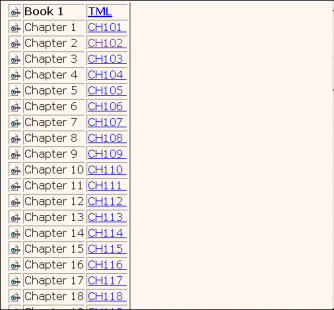
In this table, hyperlink are shown for
each chapter. Clicking the link for chapter 2 opens this file (from the Thesaurus
musicarum latinarum) at the specified chapter.
- In the Lucidario, Aaron cites Boethius's De institutione musica
a number of times. One citation, to book 1, chapter 11, occurs in
book
2, chapter 8, ressolutione. If you follow the link, the following
table appears:
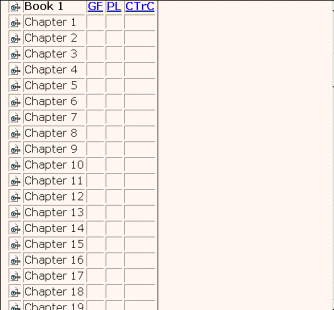
There are
thus no specific links to the chapter in question. Instead, in the top row of
the table, three hyperlinks to electronic sources are shown for the entire book.
Stylesheets
Stylesheets can be used to display documents in different manners. There are
two sorts of style sheets:
- TOC Stylesheets, which determine what sort of table is displayed in the
frame on the left
- Content Stylesheets, which determine how the content of the document is
displayed in the frame on the right
To change the stylesheet, go to the Dynaweb Preferences:
the icon  displays these. The
settings are personal, though you can always restore the default settings by
clicking the "Apply Defaults" button an then "OK".
Global Preferences seem to be preserved between sessions, Book Level Preferences
are discarded. displays these. The
settings are personal, though you can always restore the default settings by
clicking the "Apply Defaults" button an then "OK".
Global Preferences seem to be preserved between sessions, Book Level Preferences
are discarded.
The following Content stylesheets are available for all treatises except Aaron's and Del Lago's:
| basic |
uncorrected text, with variants, errors, abbreviations etc. shown in red |
| default |
corrected text of document |
| Standard DynaWeb View |
identical to Default sheet |
The following TOC stylesheets are available for all documents except
Aaron's Toscanello:
| default |
Table of contents |
| page |
list of page numbers |
| Standard Table of Contents |
identical to Default sheet |
Note that the "default" and "Standard Dynaweb
View" sheets are identical (why there are two names is a mystery).
Stylesheets for specific sources
The following Content stylesheets are available for Del Lago and
Aaron's treatises (except Toscanello):
| default |
line-by-line diplomatic transcription with corrections; layout follows
document closely |
| version 2 |
corrected text of document; spelling normalised and layout adapted |
| version 3 |
corrected text of document; spelling and interpunction normalised and
layout adapted |
| Standard DynaWeb View |
identical to Default sheet |
The following stylesheets are available for Aaron's Toscanello:
| Content |
TOC |
description |
| Standard Dynaweb View (=default) |
Standard Table of Contents (=default) |
first edition (1523): line-by-line diplomatic transcription with
corrections; layout follows document closely |
| version1529 |
version1529 |
text with all significant variants of 1529 edition |
| version1539 |
version1539 |
text with all significant variants of 1539 edition |
| version1562 |
version1562 |
text with all significant variants of 1562 edition |
| compare |
compare |
text with variants of the four editions (only at locations where
significant variants occur). The first occurrence of a significant variant is
shown in fuchsia, other occurrences in
lime. |
Stylesheets corresponding to versions 2 and 3 of Aaron's other treatises
will be supplied.
Examples and illustrations
In the default and basic views, illustrations and music examples may be
shown at reduced size to fit the screen. Clicking an illustration opens a new
window showing the full-size illustration.
Searching
Simple searching is very easy. Just enter a word or phrase in the seach
field in the bottom frame and press the "Search" button. Only
complete words are found. You can search for strings by means of wildcards: for
these and kinds of advanced searches see the DynaWeb
Client Guide, chapter 4.
The scope of the search depends on what is displayed in the left
frame.
- If the left frame is a list of collections and none of these is selected,
all collections are searched.
- If one collection in the left frame is selected, this collection is
searched. If you want to search the other collections as well, select the "All
Collections" checkbox.
- If the left frame is the contents of a document, only the document is
searched.
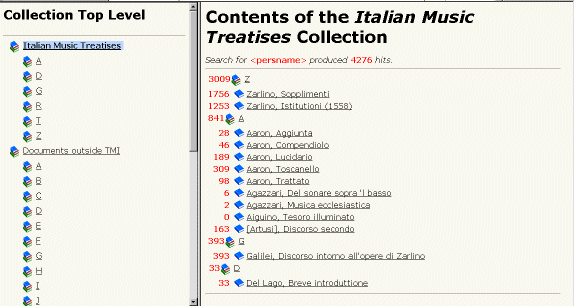
After the search, the number of hits in each item will be shown in the
tables, and in the document itself each hit is shown in a red, big font. Some
icons in the bottom frame are related to searching:
 |
Display next pages with search hits |
 |
Display previous page with search hits |
 |
Clear search (normal fonts will be restored) |
Searches can be "expanded", that is, word forms, synonyms,
and related terms are included in the output. To use this option, click the
check box "Expand Search". A good example is to search for
musica, which also finds words like musico, musici
and musiche.
You can search markup, for example by entering a tag name in the search
field. Here is what happens when all <persname> tags are searched.
Special searches
- TMI search. When an item is preceded by
one of the TMI search icons ( or
), you can search all treatises for
references to this particular item, for example:
- In the
Personal
Names file, a TMI search icon appears before each name. Clicking this icon
starts a search for all occurrences of this name in the Italian Music
Treatises collection. (Try
here!)
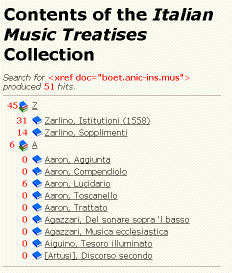
- When appearing at the top of a work in the Italian Music Treatises
and Documents outside TMI collections, this icon starts a seach for
references to this work in the treatises. For example, clicking this icon in
Boethius's De institutione musica (here)
generates the following list of hits:
- When appearing before a division title, the TMI Search icon generates a
list of references to this particular division. Don't be surprised if the number
of hits is low or zero. Note that only references to precisely this division are
found, and not to its subdivisions. SGML experts: this is
because references to the division ID are searched.
- Cross-reference search. This type of
search is indicated by the icon after a
division title. Clicking this icon produces a list of cross-references to this
particular division within the current document. This type of
seach is in fact a backward internal link.
|
|
